Showing posts with label Android. Show all posts

Thursday, October 22, 2015

A Linux Feature - Getting your own Desktop on your Android - Part 2 [No Root]

Hello All! I'm back with Part 2!

Today I'll be covering the Non-Root method. It's much simpler, but not as flexible. make no mistake! Most phones and tablets are un-rootable so this will likely appeal to a wider audience. Without further ado, let's go!

Things to note however. While setup is much simpler and hand-free,

  • Performance is degraded, but still somewhat usable
  • Setup is seemingly Pre-configured. It's not a clean setup!
  • Right clicking the desktop is non-functional
  • Stock theme could use some help
  • only Internal SDCard can be accessed.
Default setup - Borrowed from Pelya's Play store images.
It actually appears this has been updated recently (Oct 2015) , I'm not sure if these conditions still apply, I don't even have a half-decent Internet connection to even try and won't for time to come! Please provide feedback!

Programs that need to be downloaded


  • Debian NOROOT

When the download has finished, go ahead and open it. Make sure you're online and it will begin downloading the OS. Wait for it to finish.

It should restart and you will be in the Desktop now! 

Do note the fonts might be all super sized. This isn't a problem, just go to the Menu icon on the taskbar> settings> appearance> Font tab, then uncheck and recheck "Custom DPI" should now be fixed!

That should be it! it should all be up and running, JUST like that!

Do note, This may not be the latest version of Debian, and it IS "unofficial" therefore things MIGHT be a little dated. Nontheless everything should still be usable.

Sound is supposedly working now by default. Let me know, in Part 3  we're going over how to get audio working on the root method, which should work here too as Plan B.


Stay tuned for Part 3! We will be going over on how to setup Programs, Games, Sound, Themes and more!

Wednesday, October 21, 2015

A Linux Feature - Getting your own Desktop on your Android - Part 1 [Root]

Hello All! Steventechno here with a new tutorial.
I've always enjoyed tweaking my android devices since my first old Huawei M860 I got back in 2011. Nowadays with so much more power, we now have our own UMPCs and don't even realize it!

What's the tutorial about exactly? Just as the title says, We are going to get a Full Desktop on our Android Devices! Put these little Computers to WERK!!!


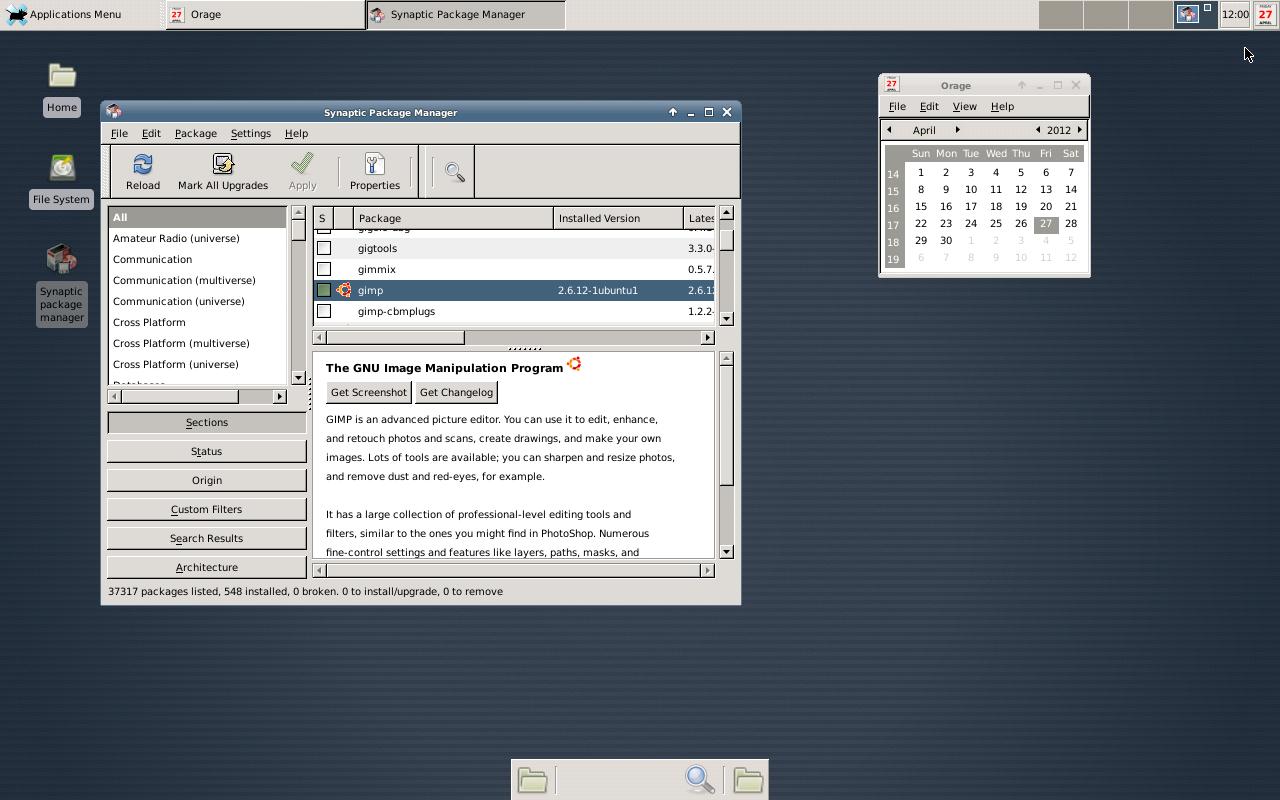
An ezample of what possibilities open up!
This is - PART ONE - Root Method.

Why would I want to have a Desktop on my Phone? Well, it COULD be your tablet instead, which would make more sense to most, Right? The bigger the better!  This is also great for multitasking that Android lacks. Now before we start daydreaming on your friends being confused on how that tablet/phone's a computer, Let's have an overview of our requirements.


  System Requirements
  • Rooted (This guide is for Root users in mind)
  • Android Versions 4.0 - 5.1 (Have not tested Android 6 yet)
  • 2GB of available storage, (Will be using 3gb for this Tut.)
  • 1Ghz Mono-Core CPU (Any modern devices is either Dual or Quad.)
  • 512 MB of RAM (Any modern device has at least 1GB)
  • Screen Resolution of 800x480 (Modern Devices far surpass this) 
You can often find the "Specs" of your phone or Tablet online, just type (phone or Tablet) model specs, and you will usually find them in "technical specs"

Note with these minimum requirements, the Internet will be virtually unusable, but other programs, say GIMP and LibreOffice would run fine.

If your Android device meets or exceeds these requirements (Most modern systems do anyways) then we are ready to continue!

List of Android Software that needs to be downloaded:
  • Linux Deploy
  • Xserver XSDL
  • Simple Protocol Player (Used in Part 3)
Once we got these, we are ready to begin!

Open up Linux Deploy and go to Properties as shown displayed below.


Once you are in, There are many options to choose, from. You may feel like you want to use Ubuntu, but in This tutorial I'm going to create a configuration that is Light and speedy. Choose these following options:

  • Distribution - Debian
  • Distribution Suite - jessie
  • Architecture - armhf
  • installation path - /storage/sdcard0/linux.img
  • Image Size - 3072
  • User name - root (Use as you wish, but root is needed for SD.)
  • Desktop Environment - XFCE
  • GUI - Check
  • Graphics subsystem - X Server
  • GUI Settings Check Xserver XSDL.


While we're at it, Let's get our SDCards to appear in the OS! Scroll all the way down and hit Mount points. Let's add in our SDCards here, Press Menu, New then the following Paths:

  • /storage/sdcard0/
  • /storage/sdcard1/
It could also be the following:
  • /mnt/emulated_0/
  • /mnt/external_SD/

It depends on the firmware (android OS) you are using, be it a true AOSP (Nexus, or Custom ROM) Samsung, LG, HTC, it all differs with the paths.

Now that we are finished with the Configs, Scroll up and hit Install. This may take awhile, so watch some random youtube video to pass the time.

When everything is finished, Back out and launch Xserver XSDL. Wait for the countdown to finish then you will see This:


Return to Linux deploy, then hit Start. It will go back to the blue screen, then the computer will load everything, the desktop and it's icons will appear!

There we have it! Your very own Desktop that goes where you go! You are now free to begin interacting with your desktop! Right now everything is bare bones, There isn't too much we can do...YET! Take this time to get acquainted with the system!


Stay tuned for Part 3:We've only began to scratch the surface! Part 2 is the will go over the Non-Root Method, Part 3 will discuss installing Programs, Games, Changing the Appearance, Add new themes, and even getting sound to work! Thanks for reading!

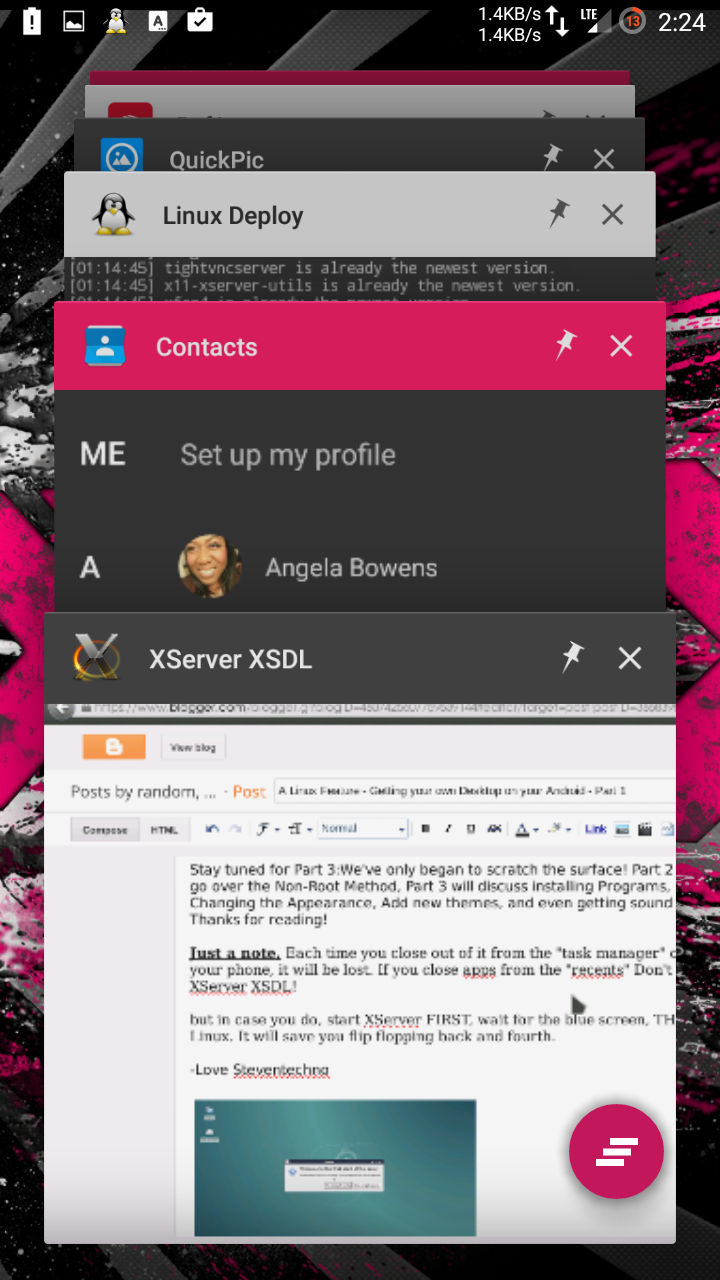
Just a note, Each time you close out of it from the "task manager" or restarting your phone, it will be lost. If you close apps from the "recents" Don't swipe away XServer XSDL!

but in case you do, start XServer FIRST, wait for the blue screen, THEN start Linux. It will save you flip flopping back and fourth.
 
-Love Steventechno 


From This
To THIS!


Tuesday, October 20, 2015

Wow.

This post is going to be short and sweet, but wow, this is what I call a Time Capsule. I should get Angela to upload ALL pride pictures here, because We got some from 2011 (the first I've ever gone to)

What I originally was going to put is Wow, it's nearing the end of 2015, and it's hard to believe it's been that long, it feels like yesterday, or rather last week. Time sure does go by, it's a symbol of how brief our time seems, even though we currently have plenty of time left as our given Characters. It's sad to know they will someday be gone from reality, but they will always be back... as a brand spanking new character with a whole new story and cast!

Deepness aside, I'll be back later with a How-To!

It's going to show you how to turn your ROOTED android Phone\Tablet into a nice little Netbook PC that you always have with you at all times! Complete with an entire Desktop with Familiar software that you may have ran on your Desktop or laptop PC before! I'll even cover on how to access the SDCards, USB Flash and Harddrives too!

I'll also be covering a Non-Root method, but make no mistake, the Root method is far superior.

Steventechno Out!